MyCalyx for PointCentral
Downloading PointCentral Server Software
- Go to the MyCalyx® home page.
- PointCentral® users have a Download Server Software button. Click the Download Server Software button to access the download page.
- Select the PointCentral version to download from the dropdown list.
The Welcome to the PointCentral Installation page is displayed.
- Open the PointCentral User Guide for instructions about how to proceed with the PointCentral installation and configuration.
Note: For details about setting up the PointCentral server, refer to the PointCentral User Guide.
Renewing the PointCentral Digital Key
PointCentral sites that allow Calyx® to access their server and automatically update their digital key are not required to renew their digital key.
However, if you have a firewall, or Calyx is otherwise unable to access your server, you must manually renew your digital key monthly.
If you are doing a manual renewal, refer to the help topic, Renewing the PointCentral digital key.
To obtain the digital key and manually apply it to your account:
- Go to the MyCalyx home page.
- Click the MyCalyx Digital Key button. The digital key for your site is displayed.
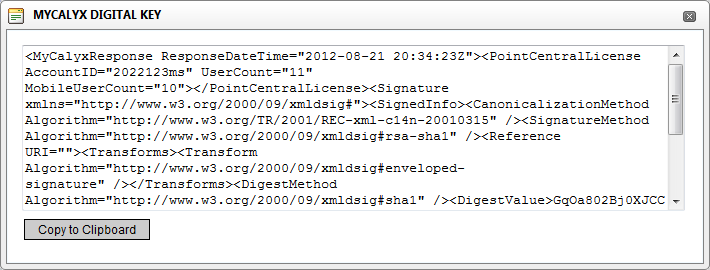
- Click Copy to Clipboard to copy the entire key to your clipboard.
The key is retained in your clipboard until you paste it in the PointCentral Parameters MyCalyx Digital Key field or into a separate document until you are ready to paste it into PointCentral.
- Enter a name for the user in the Nickname field.
- Close the MyCalyx Digital Key dialog box.
Refer to the PointCentral User Guide for detailed instructions about the MyCalyx Digital Key field.
From initial application through trailing documents – including secondary marketing, Calyx has you covered.
Call 800-362-2599 for pricing options or to schedule a live demonstration.











 MyCalyx Overview